Module 3 Formstorming

Arhielle Nieto


Project 3


Module 3

Exploring touch using P5 & the Makey Makey

Activity 1
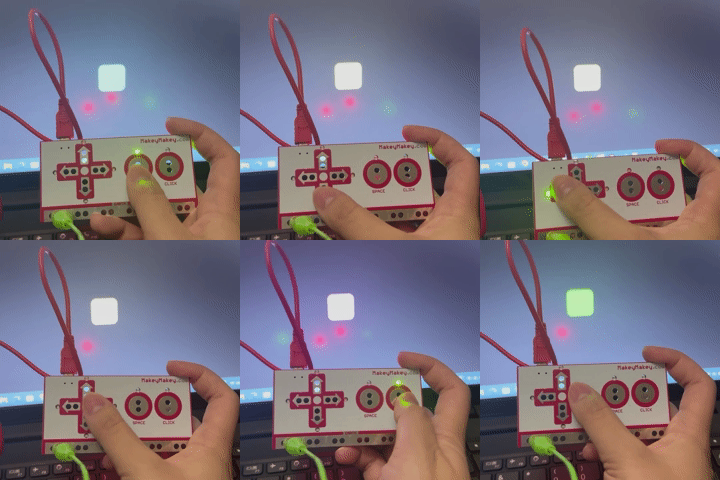
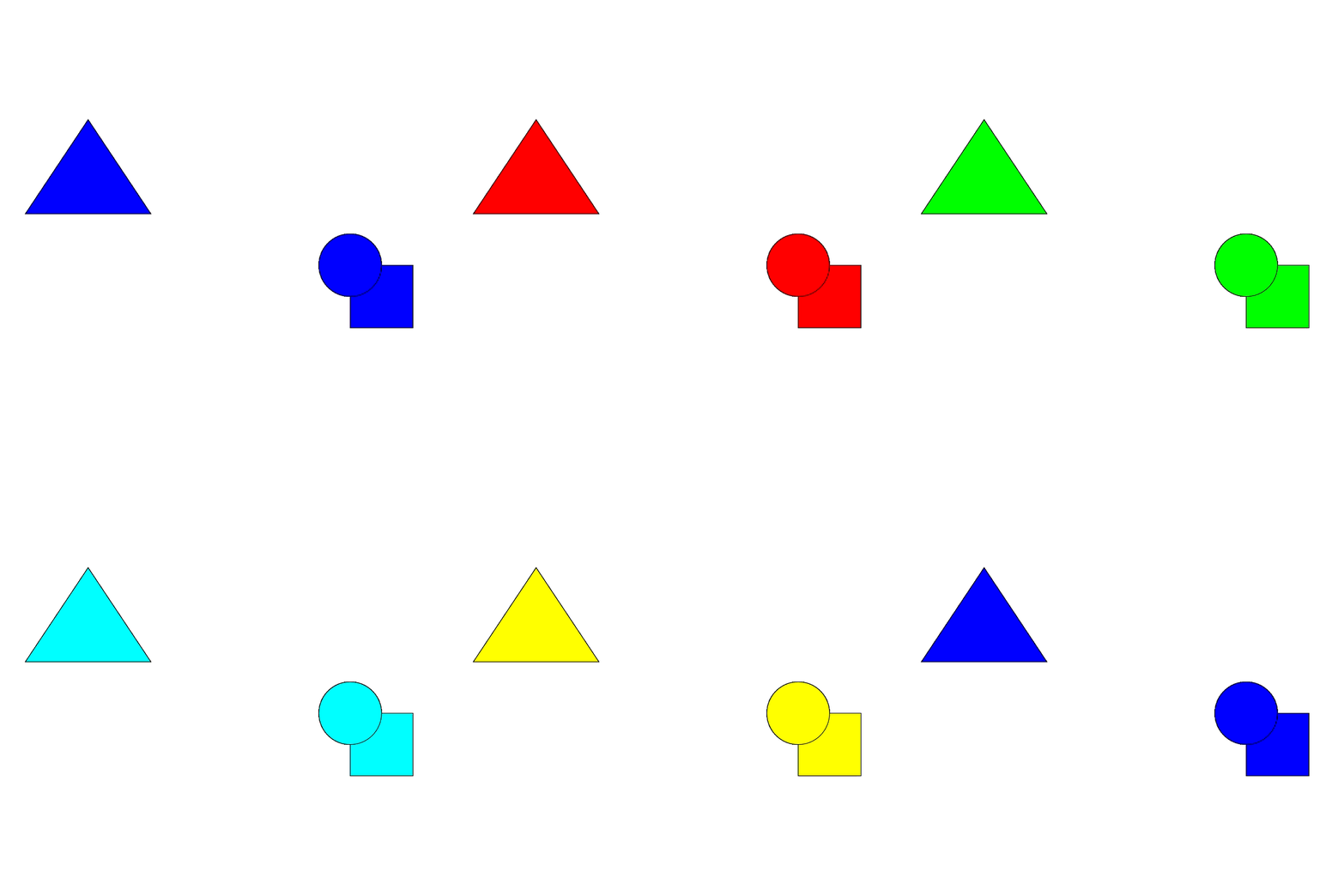
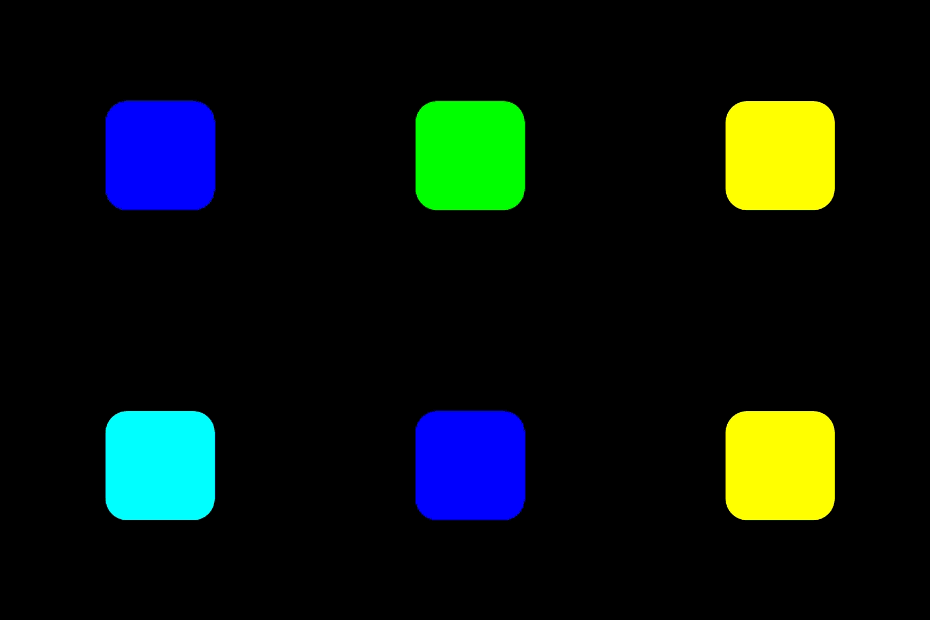
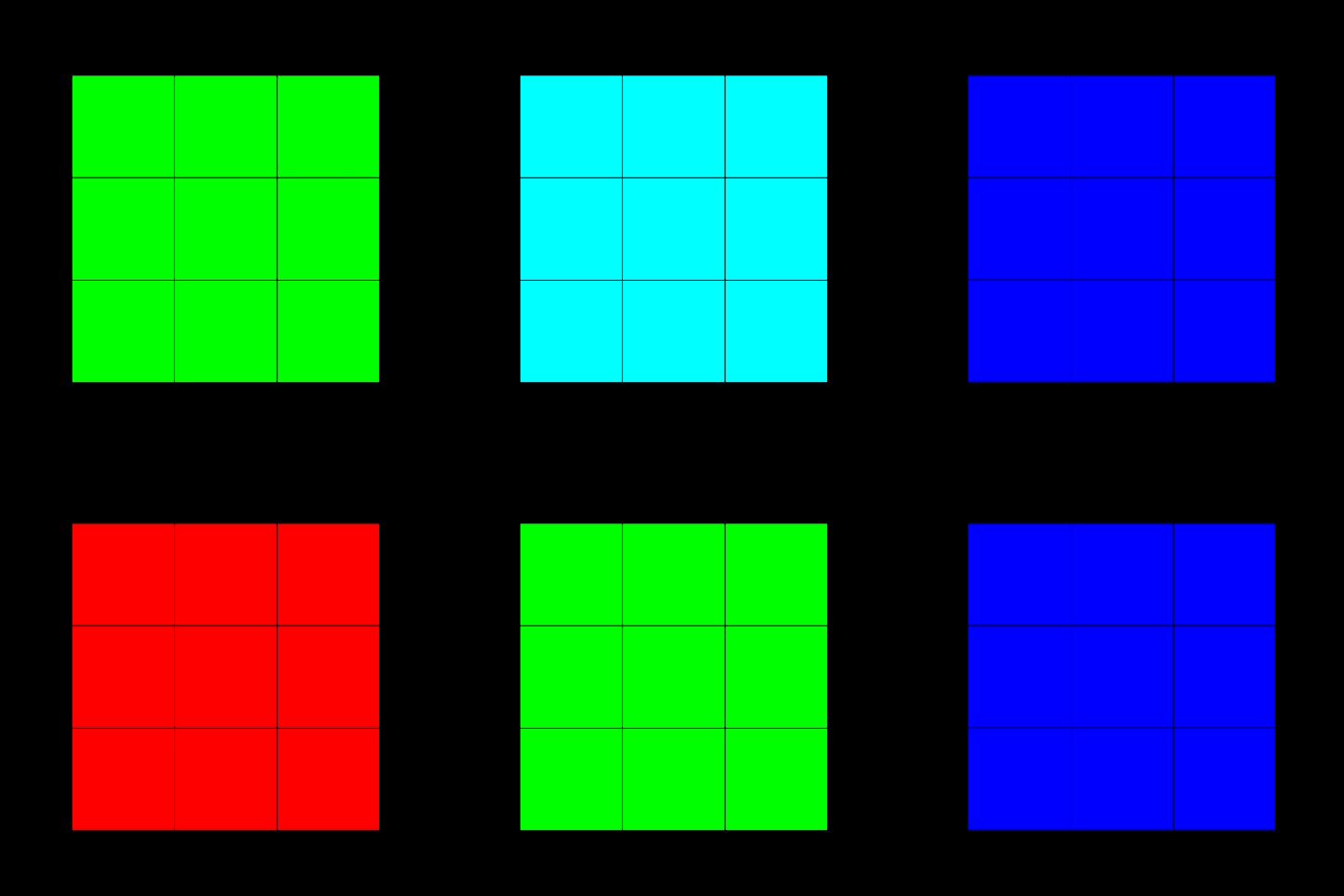
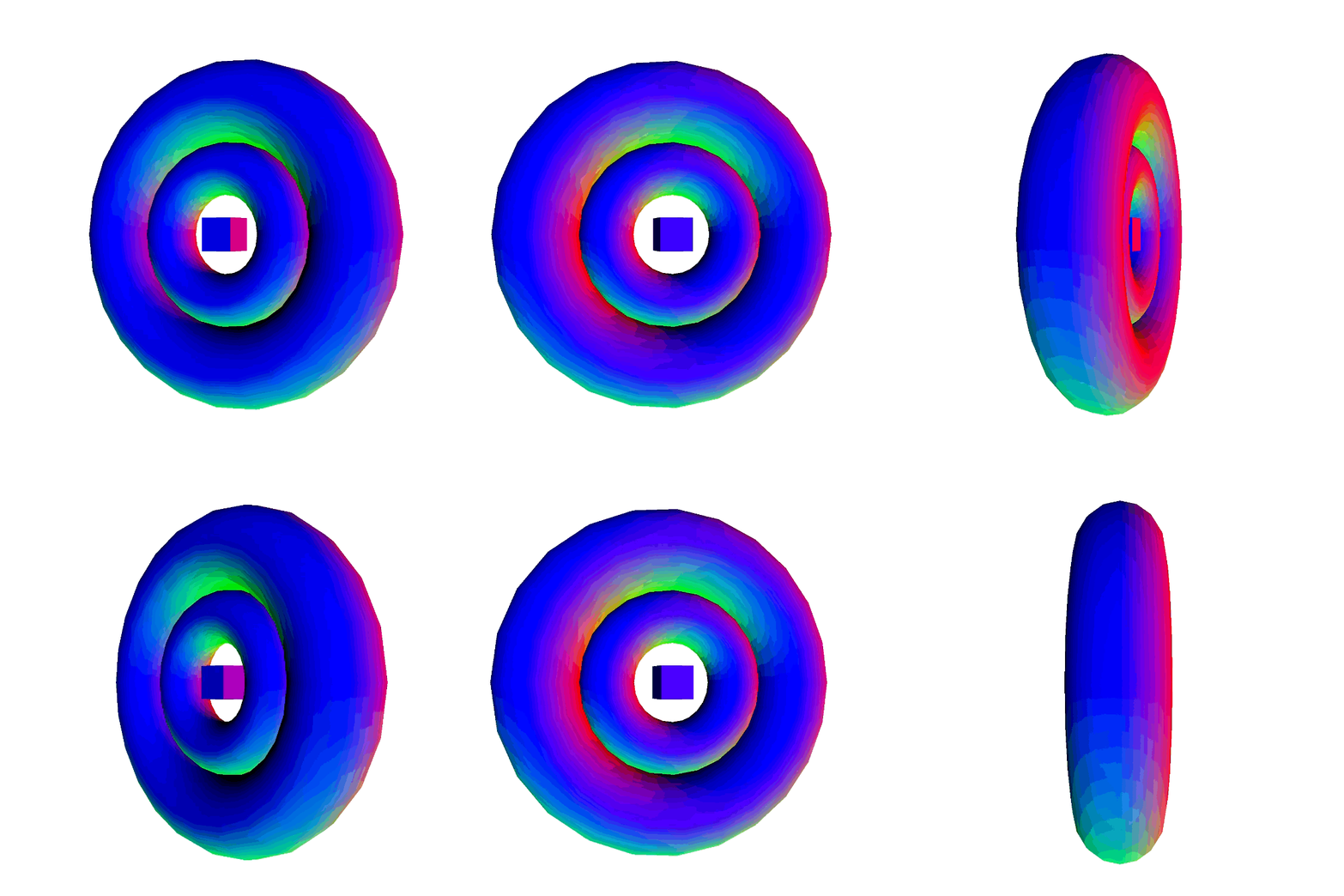
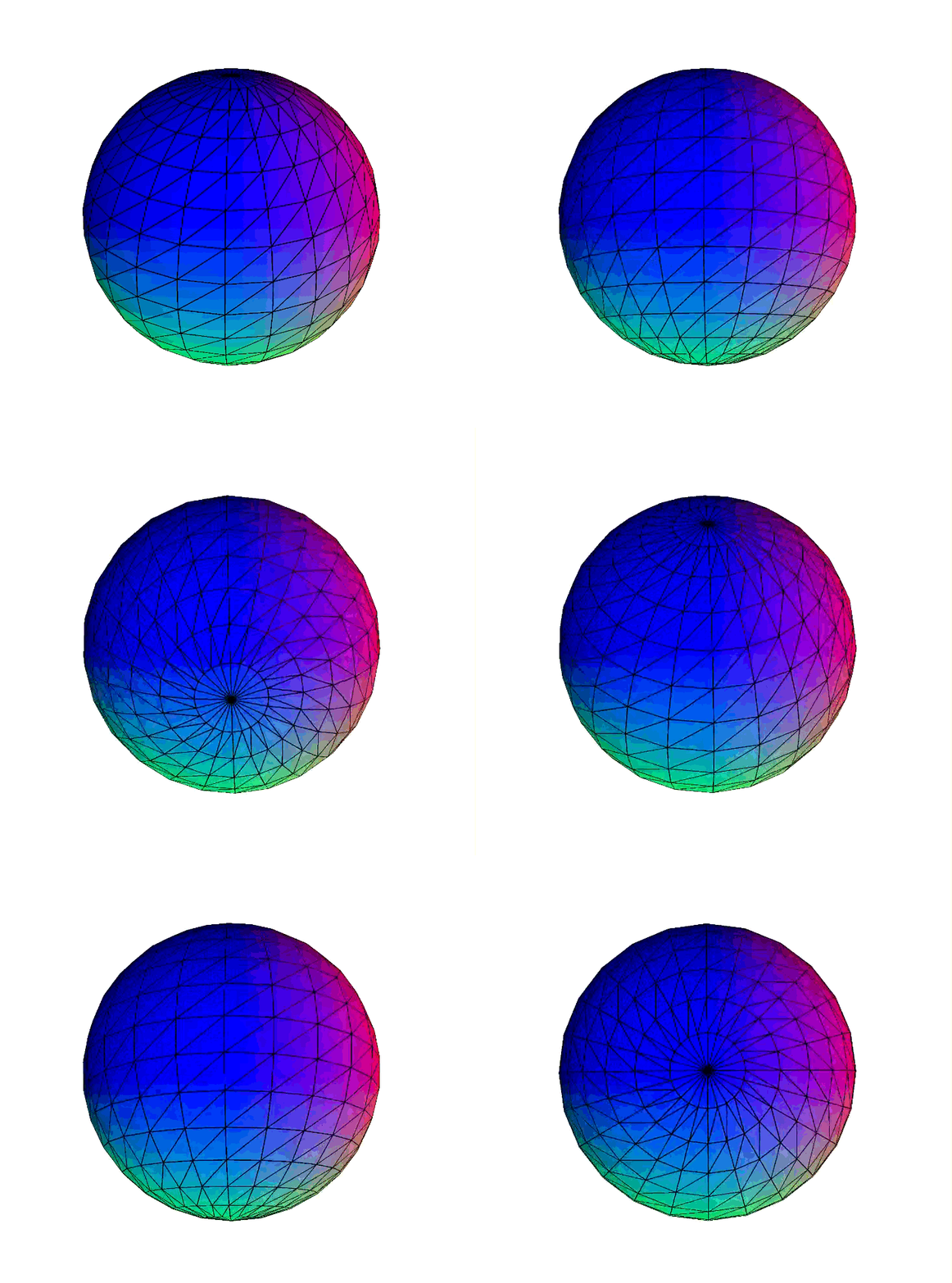
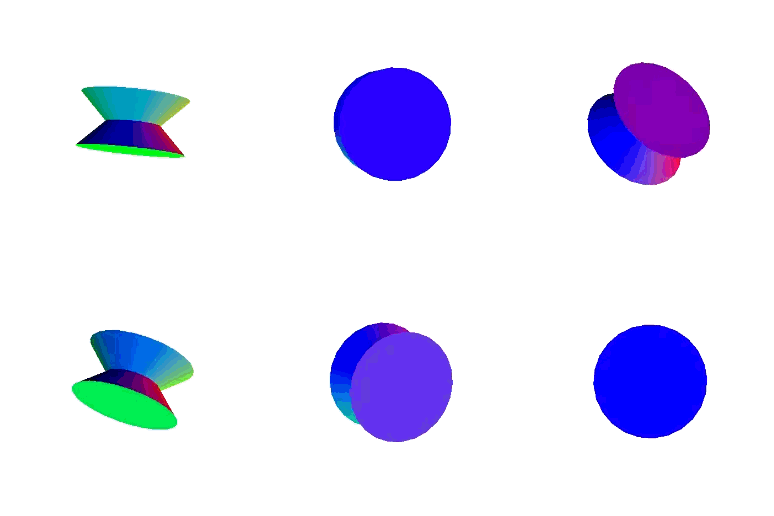
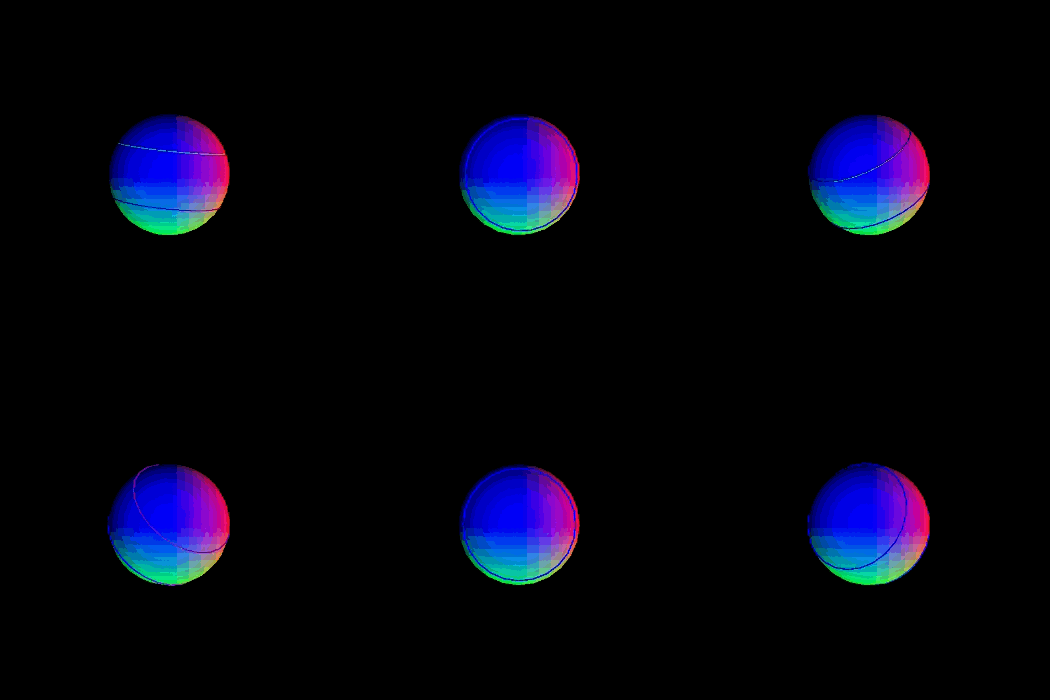
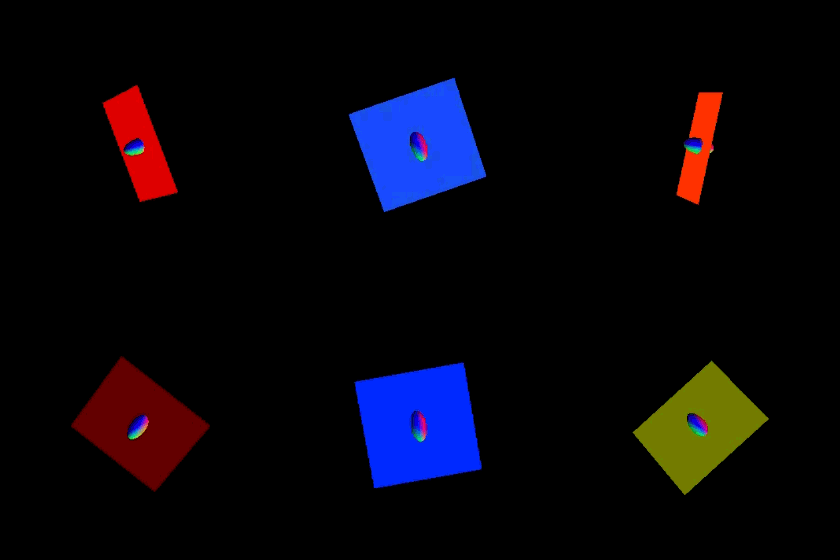
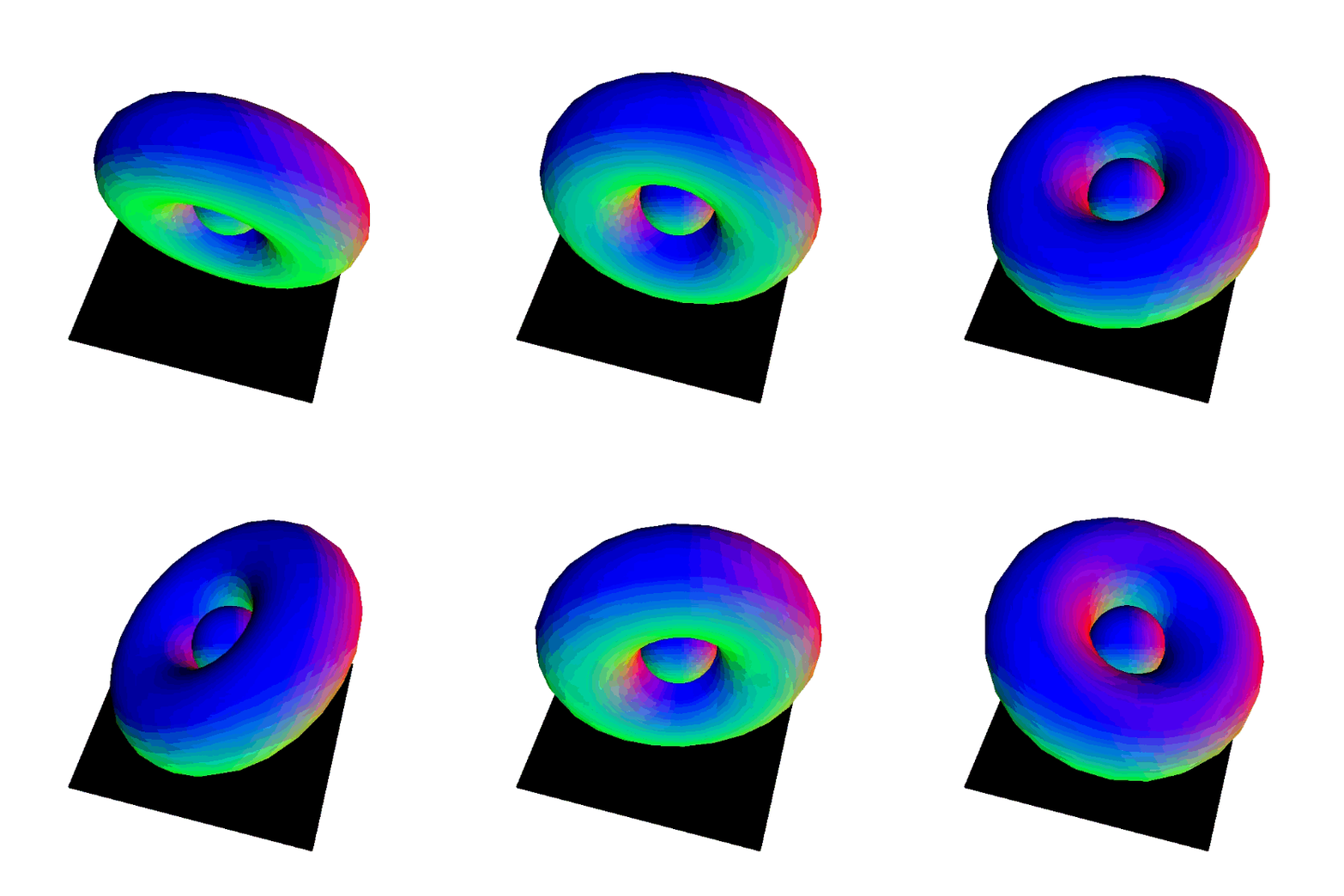
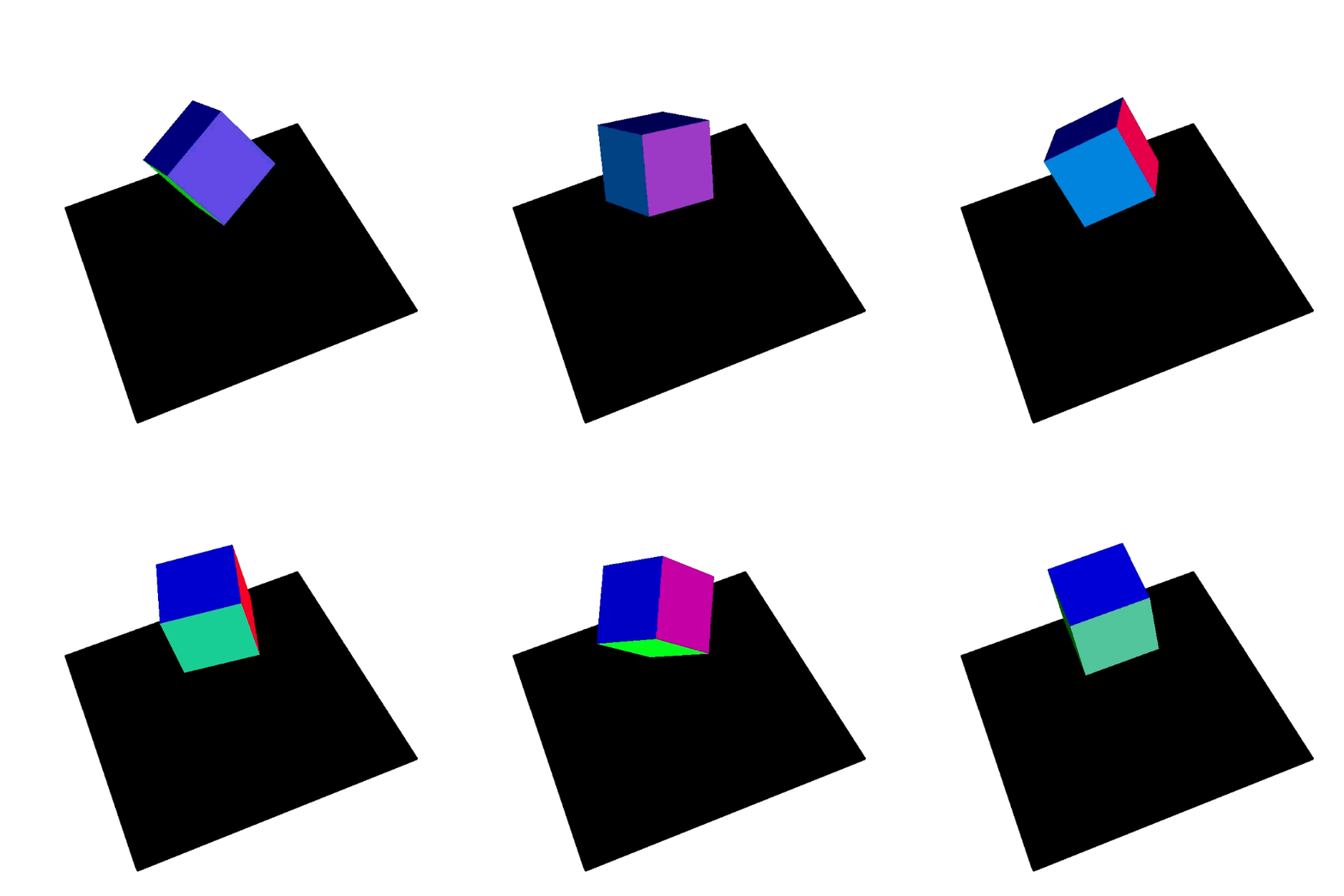
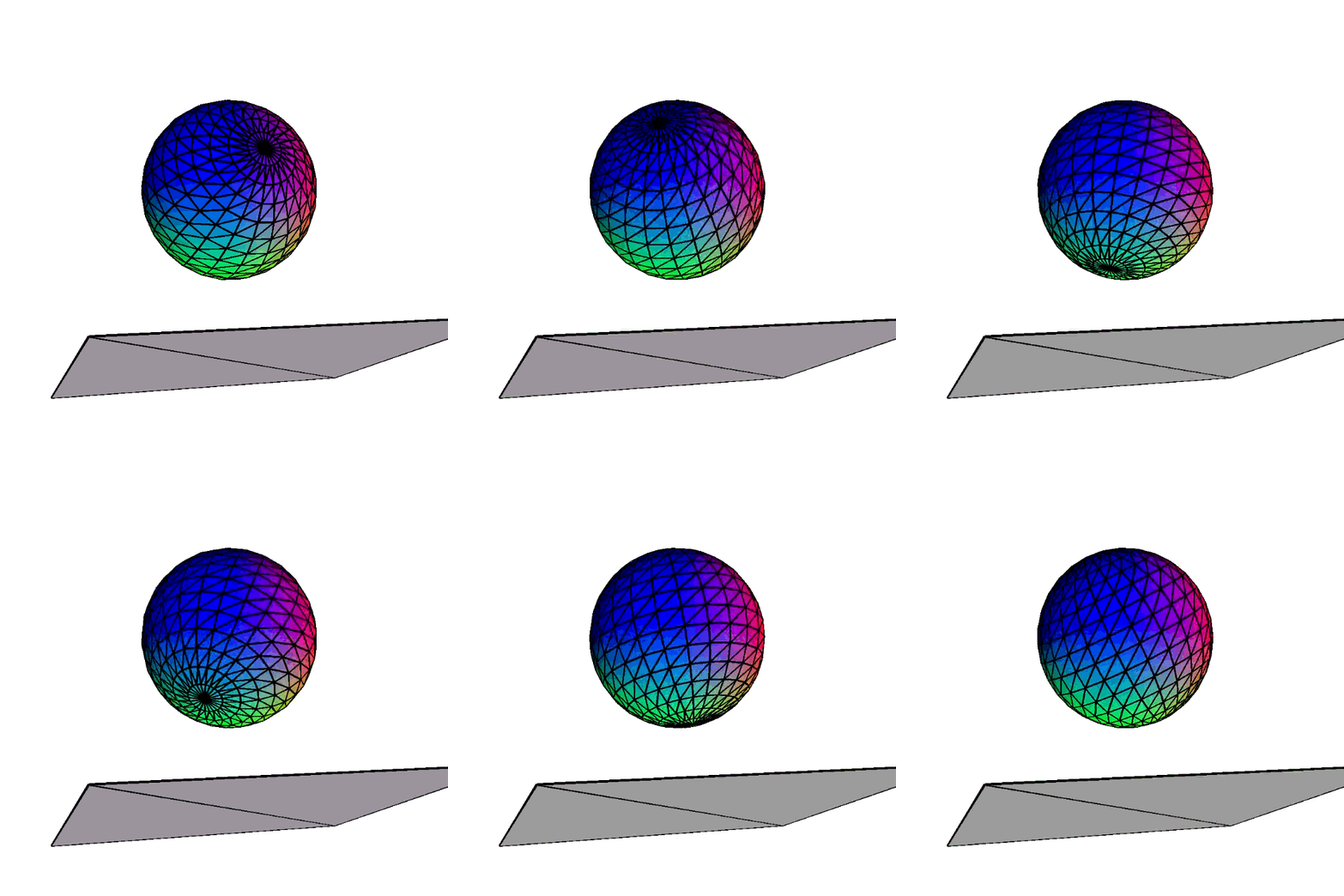
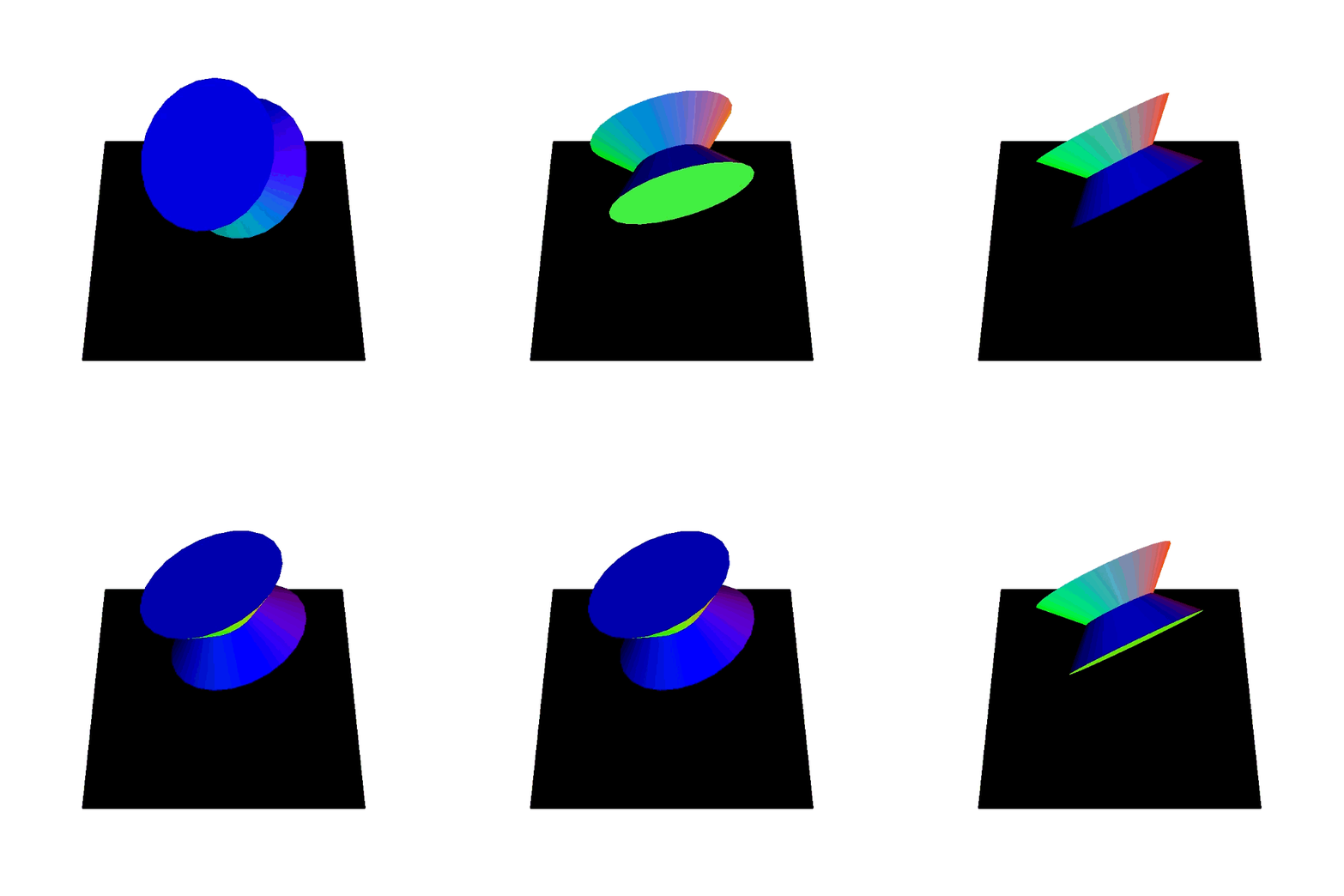
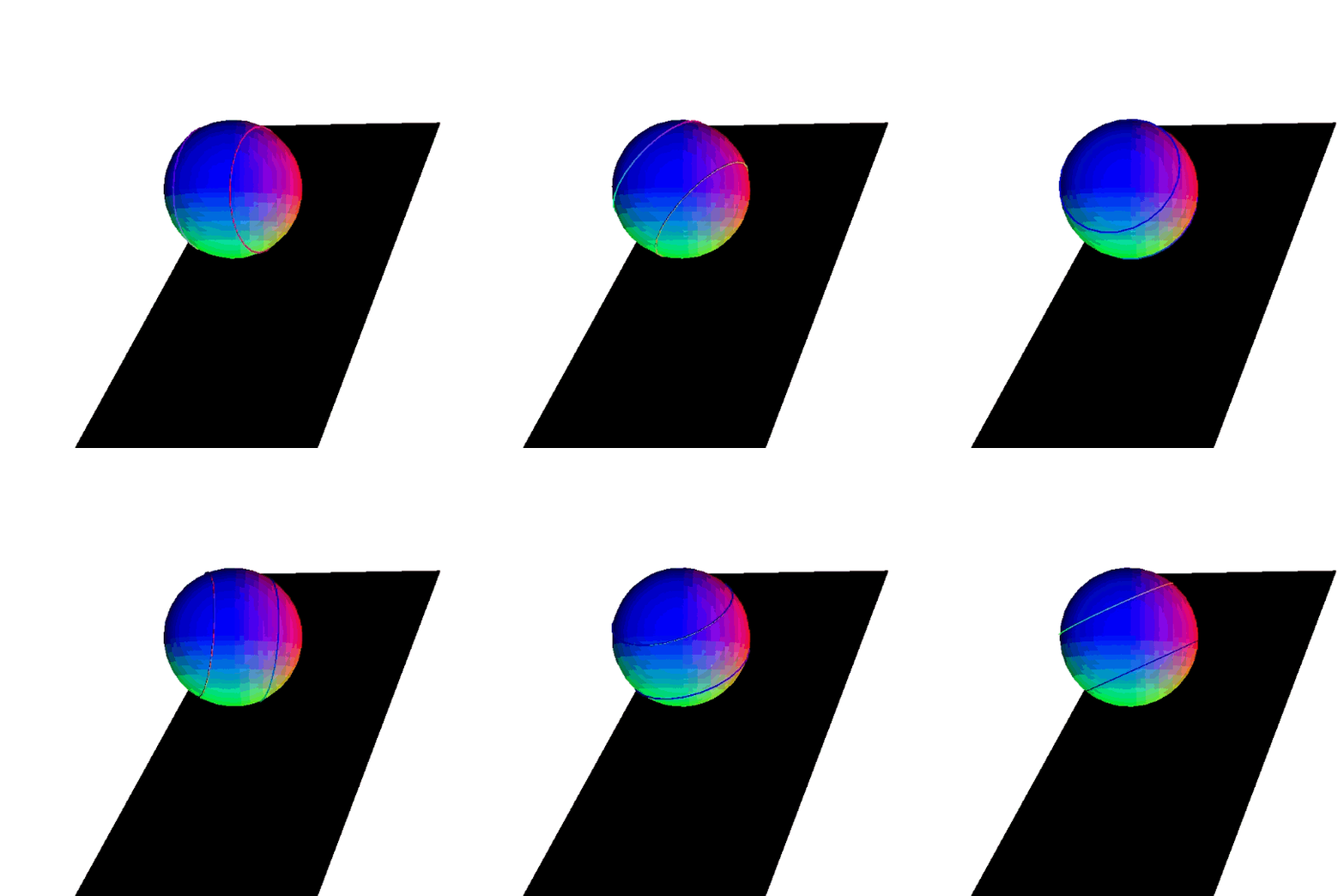
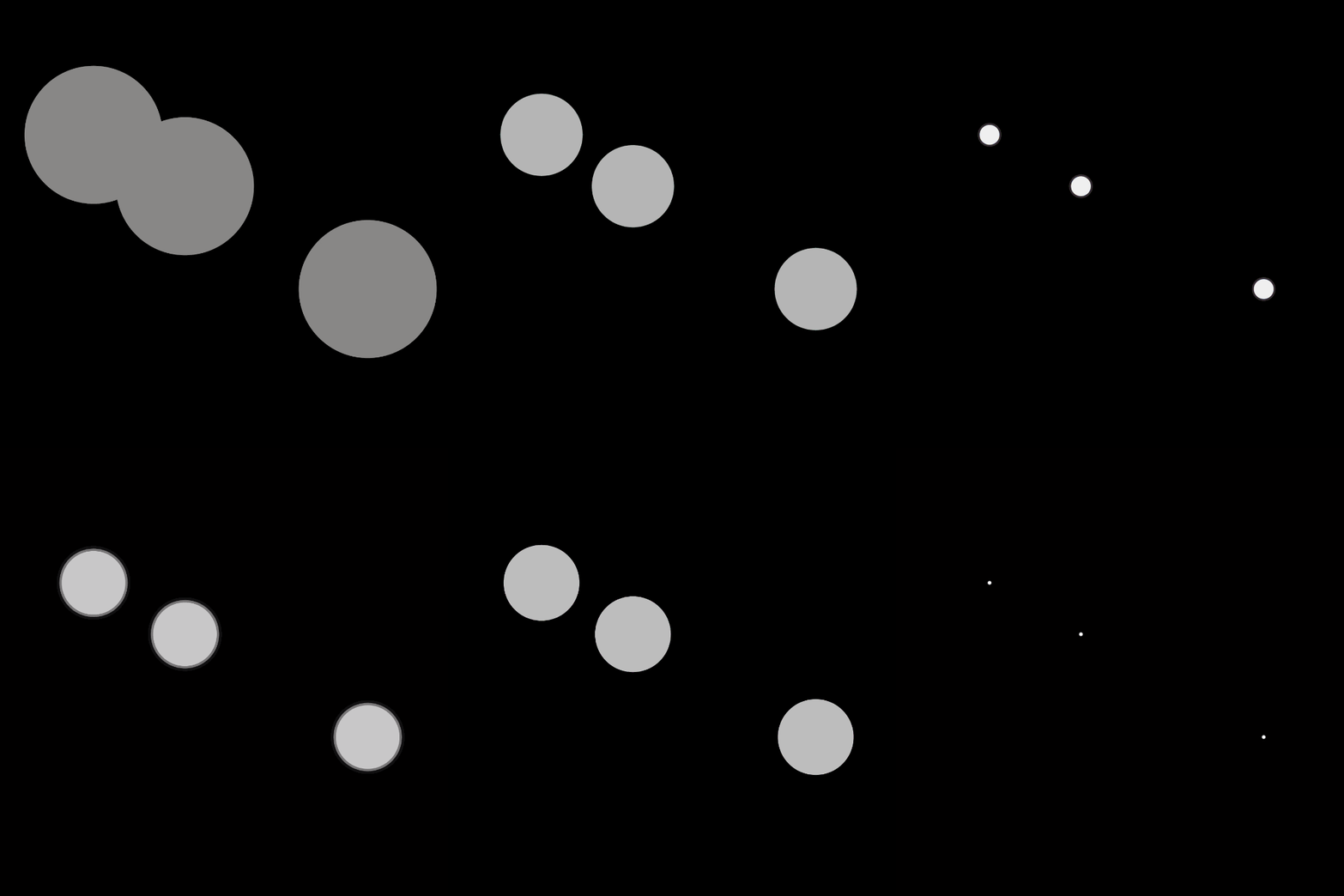
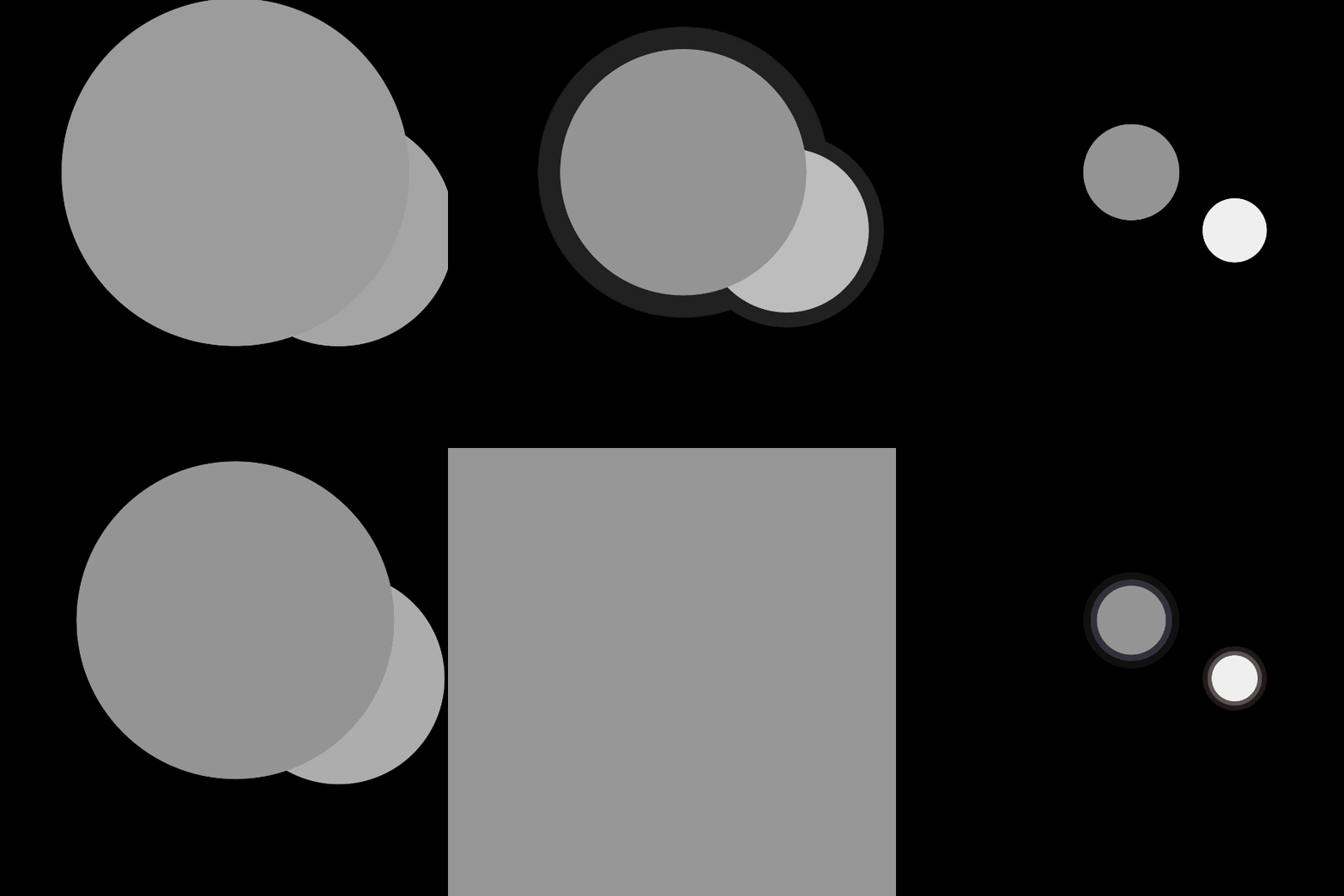
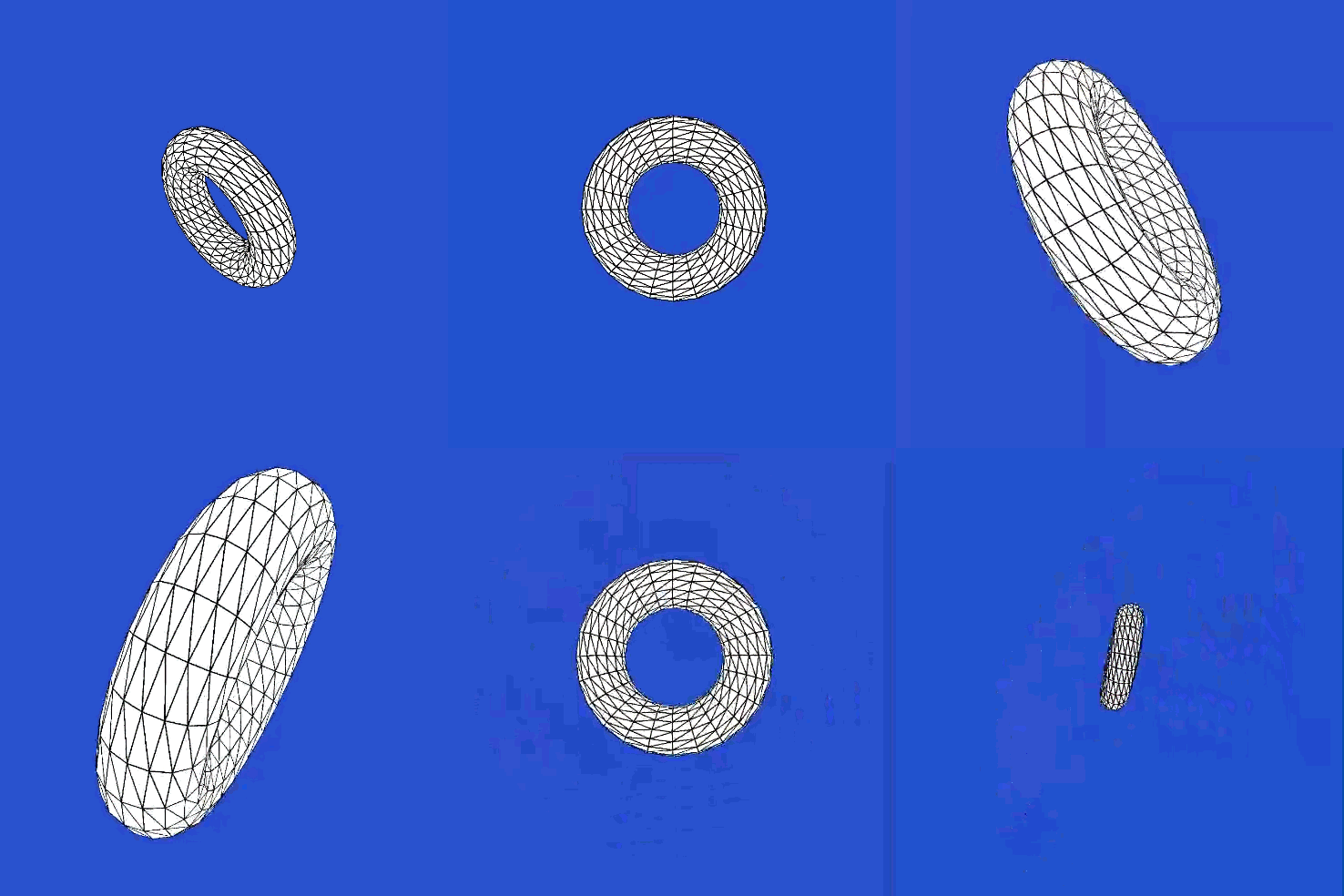
Using the Makey Makey to play with the p5 code included in the lecture and tutorials. It's been a while since I used the Makey Makey, but it's still straightforward and fun to use. For the first sketch, I tried seeing if I could incorperate multiple shapes. Ideally, I tried getting them to alternate colours, but I broke the code along the way so I kept it fairly simple. I experimented with the visuals of the square by rounding the edges at various amounts. A cool fade in effect while I changed the square into an ellipse. I found a cool code to create an array of squares, so I incorporated it into the first sketch. The visual reminded me of a dance floor or rubix cube, which was cool to look at. I played around with the colour and shape appearance for the moving sketch. There's small changes. Instead of not leaving a trail behind, I deleted a part of the code where it reset the shape so that it leaves a trail behind. By implementing code from the first sketch, I made it so that the direction you press will move the square while changing it's colour. I took the concepts from the first sketch (colour changing) alongside leaving a trail behind together. There's not only a trail but it alternates colours too. Rather than moving, the shape expands as you move it. I added the noted box geometric from the original sketch and added an additional torus. I thought of finding other interesting geometric shapes I could use instead of the standard torus from the tutorial. This spherical shape with lines was sourced from the p5 website. As I continued to experiment with the various shapes, I thought to create an hourglass shape from two cones. I tried moving the cones but they would disappear, so this shape turned out to look more like a yo-yo base. I continued to experiement with the various geometric shapes available in p5. This shape uses a sphere with a cone overlapping inside to create the lines. I was going for a baseball look, but this simplified ball with lines can still look like a sports ball. Another geometric shape I found on p5 was a plane and ellipsoid. I played around with the shapes and thought the plane was interesting because it changed colours depending on its orientation. For the perspective sketch, I continued to play around with the composition of shapes. This shape was inspired by a soap from a show I watched as a child (into the night garden). I continued to experiement with various geometric shapes. A cube is a common shape when it comes to viewing things in perspective, so it was interesting to play around with the visuals for a box shape. Similar to the last sketch, I used this interesting spherical shape for this perspective sketch. I took one of the interesting shapes I created from the previous sketch and put it into the perspective sketch. The hourglass shape was created from two cones. Another interesting shape from the last sketch was the baseball looking shape. I thought it would be cool to view it with this sketch that allowed you to view it at different angles. The sketch5 utilzied sound after touching certain keys. I played around by changing the shape into a rectangle/square. I continued to experiment with this sound sketch by adding different ellipses. Similar to the last one, I incorporated another ellipses shape and changed their size too. Since the shapes are already translucent, you can see where they overlap. I continued to play around with the sketch that used all sketches together and added additional ellipses. After going through each sketch, I thought it would be interesting to replace the ellipses shape with a geometric shape. In order to do that, I needed to add the WEBGL to the canvas setup for the shape to load properly. The torus would expand depending on the frequency of the sound.

Activity 2
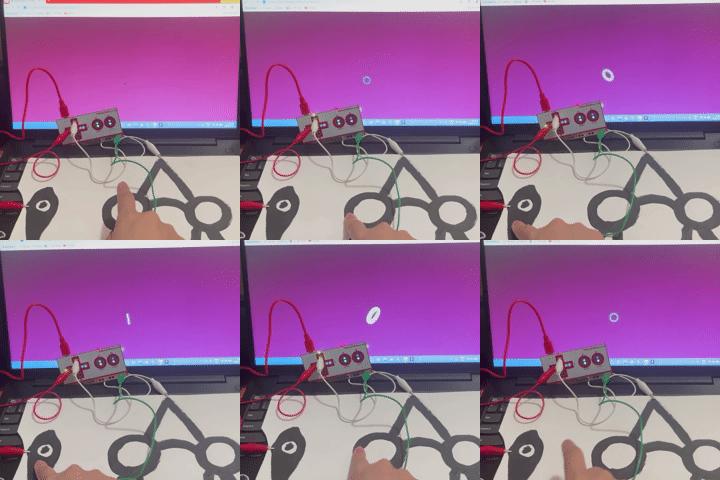
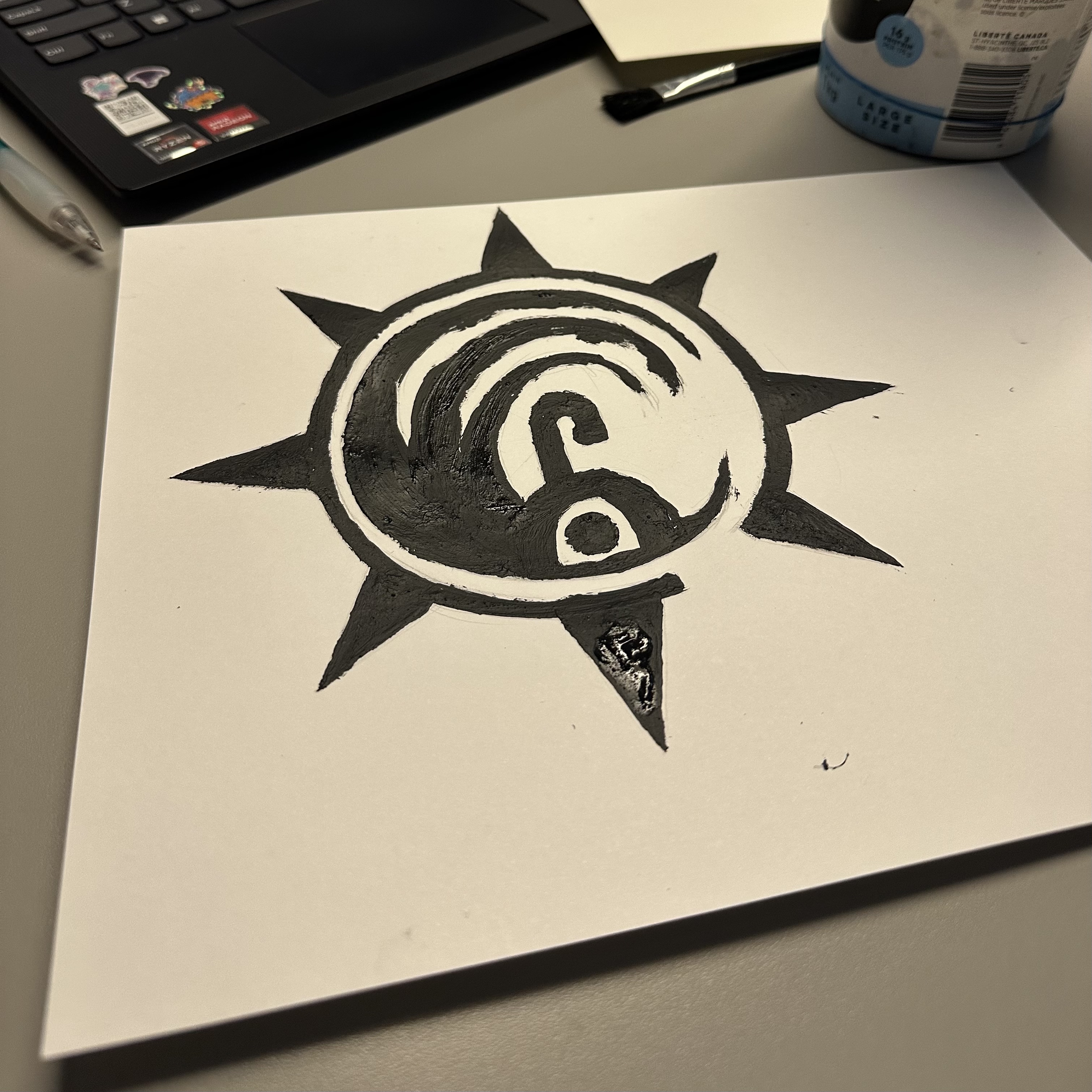
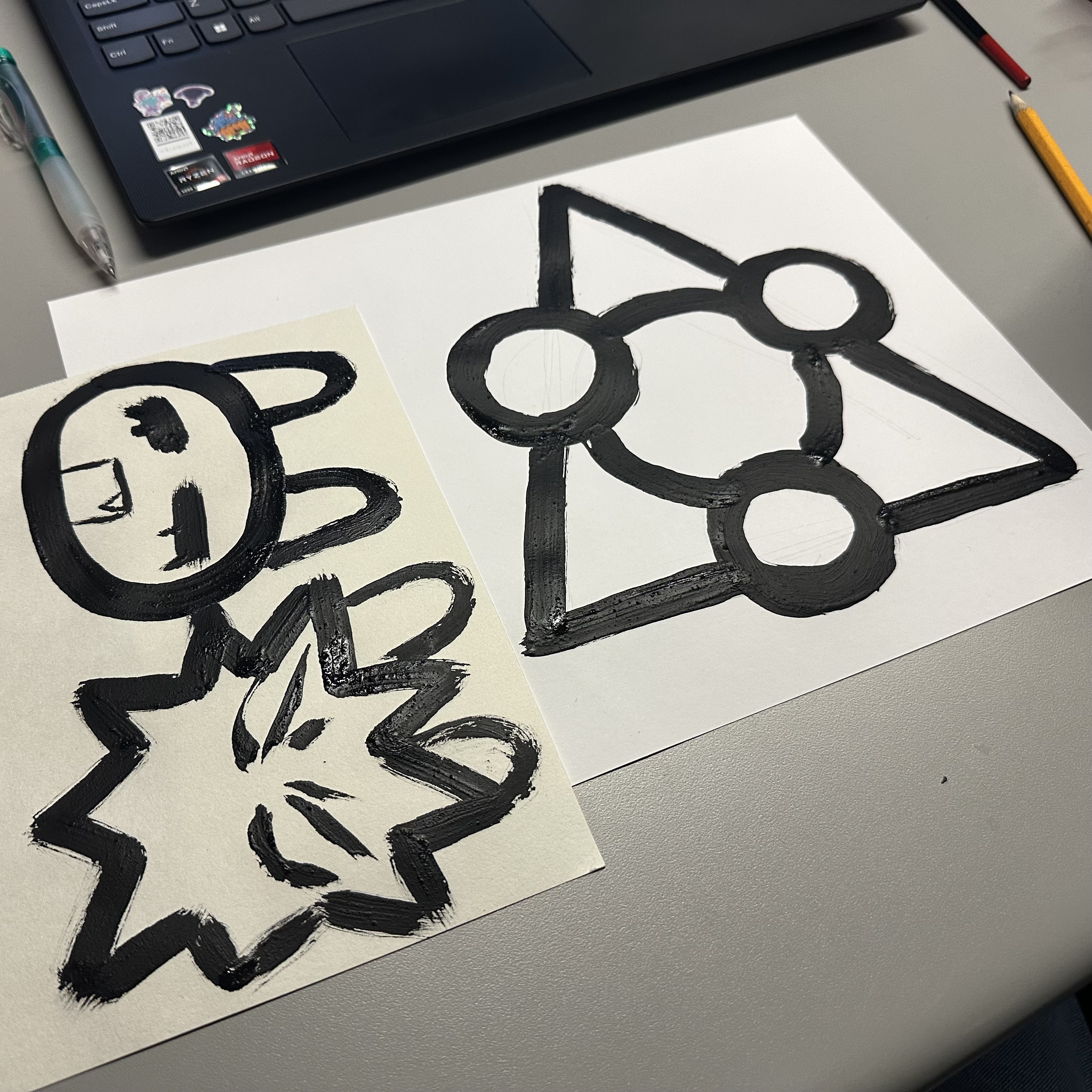
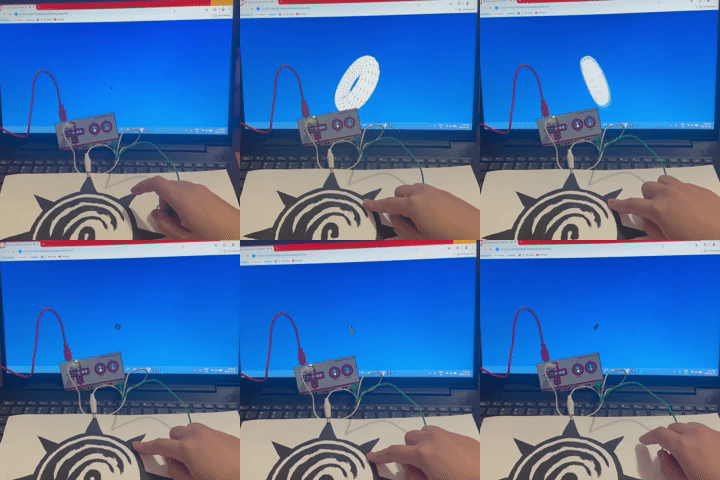
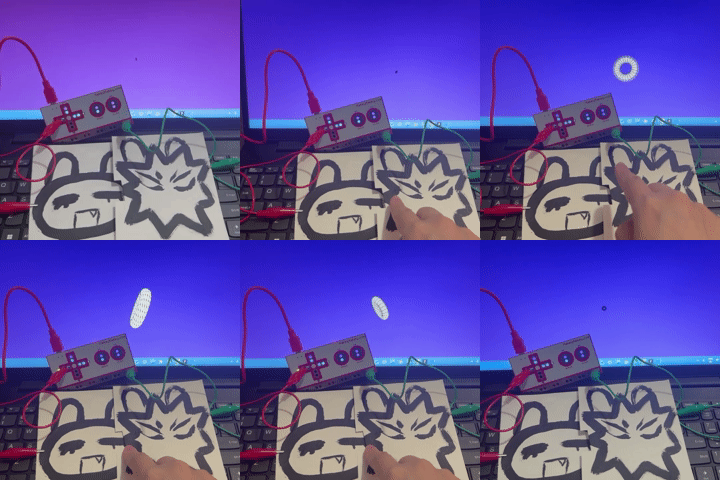
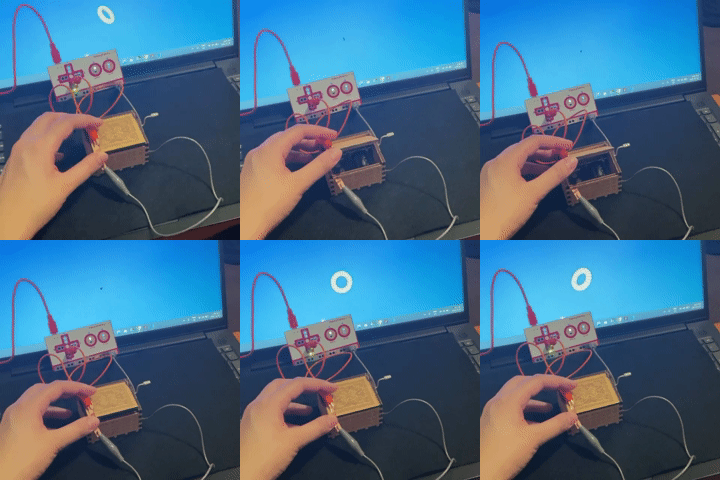
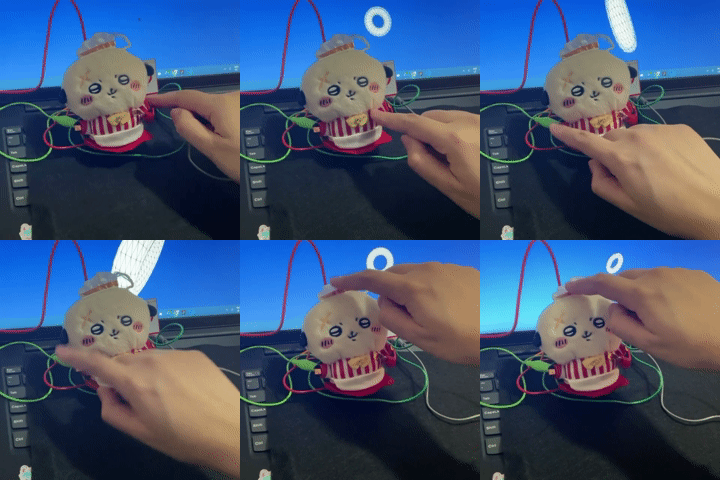
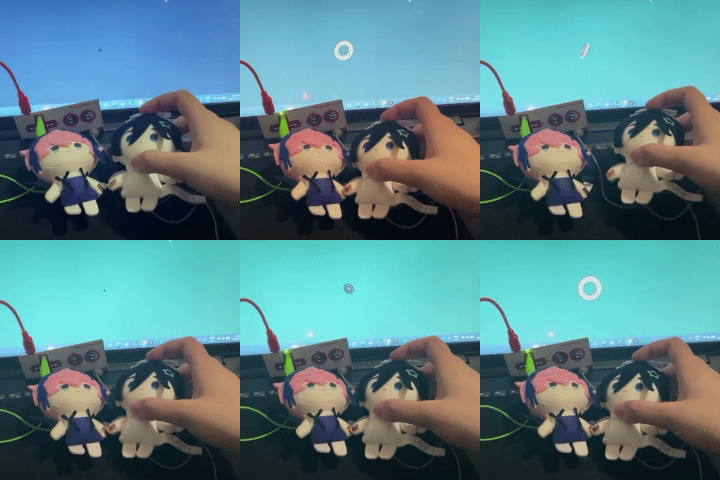
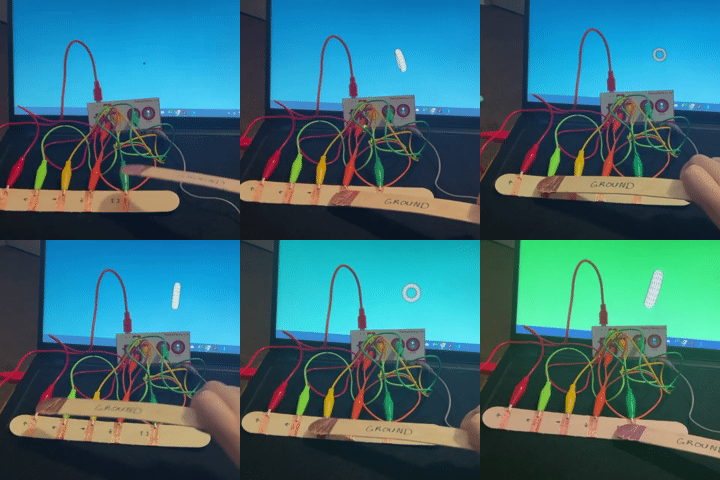
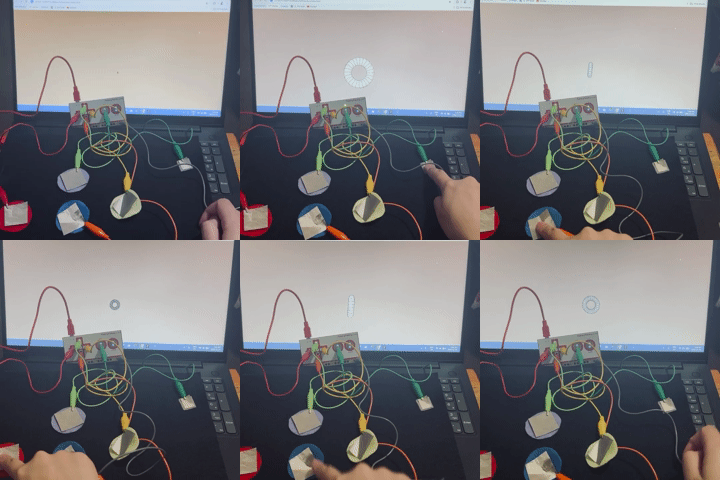
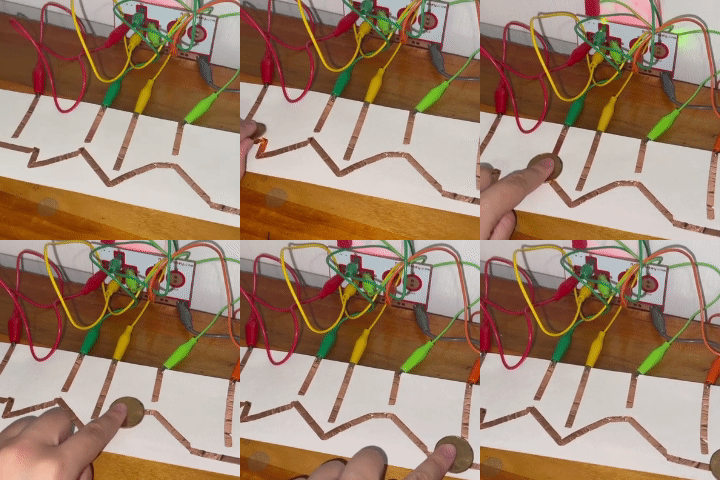
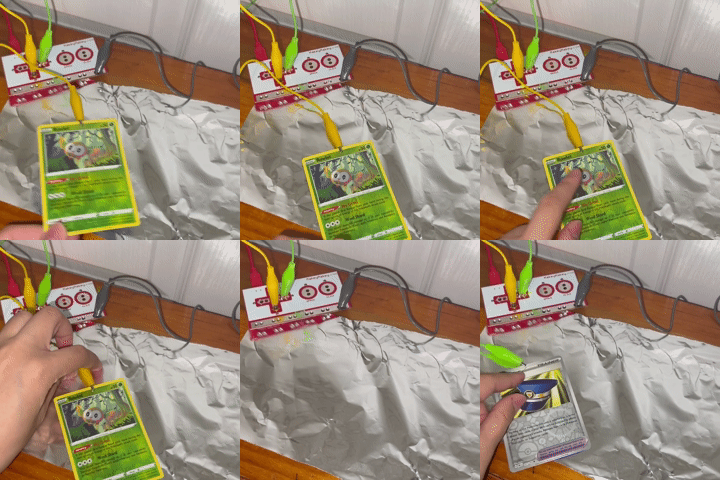
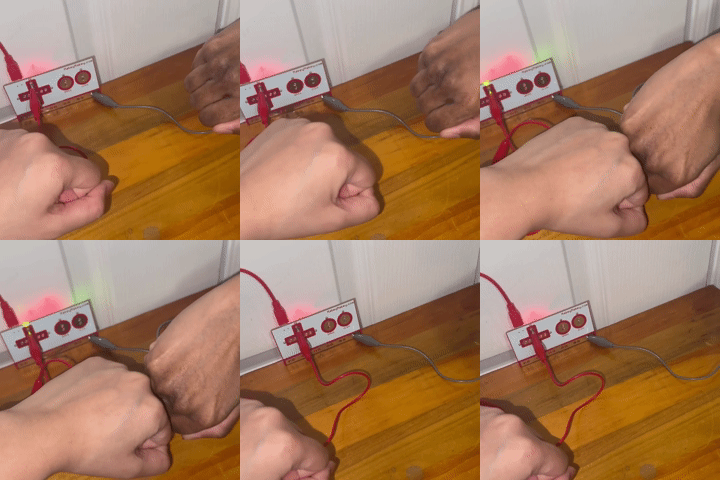
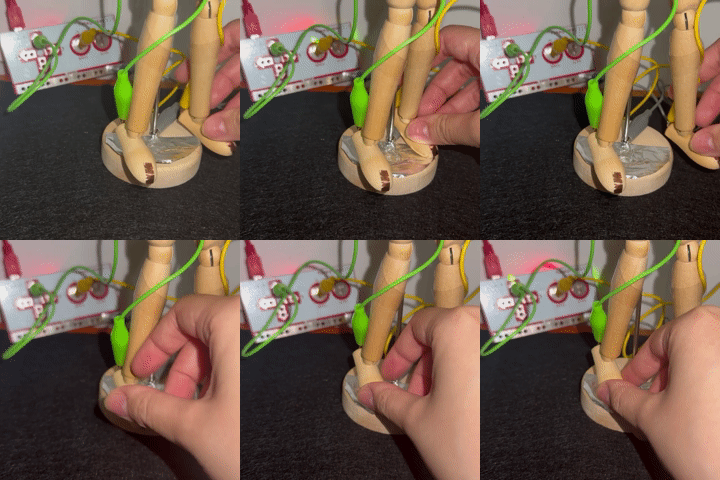
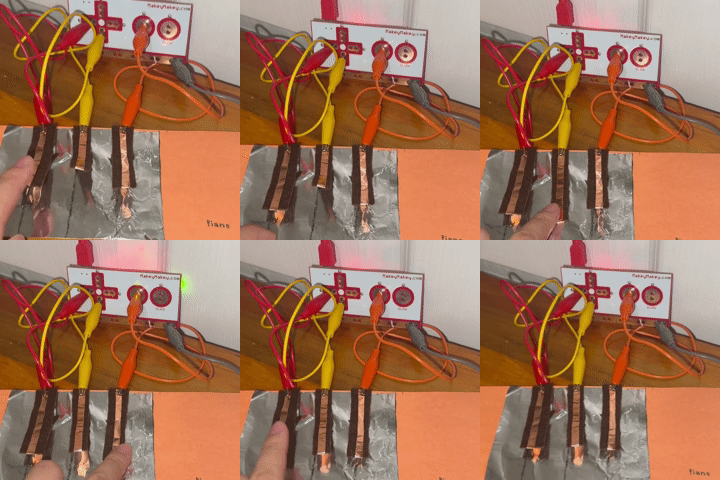
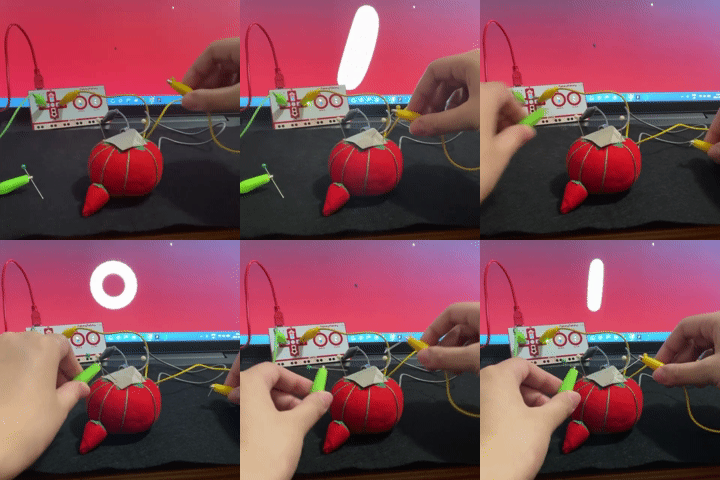
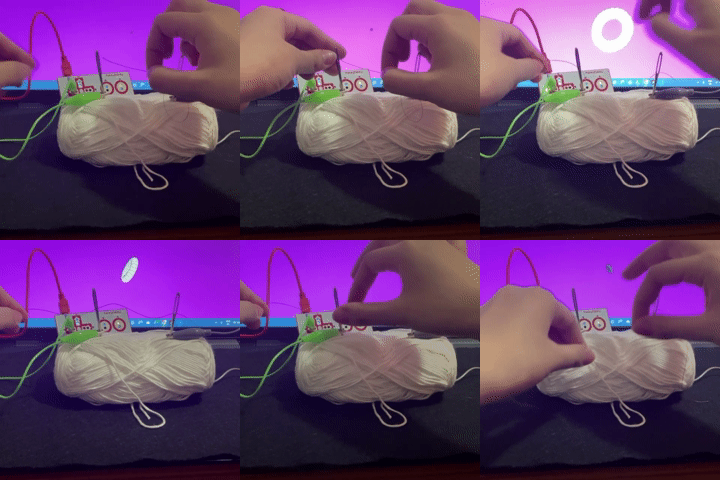
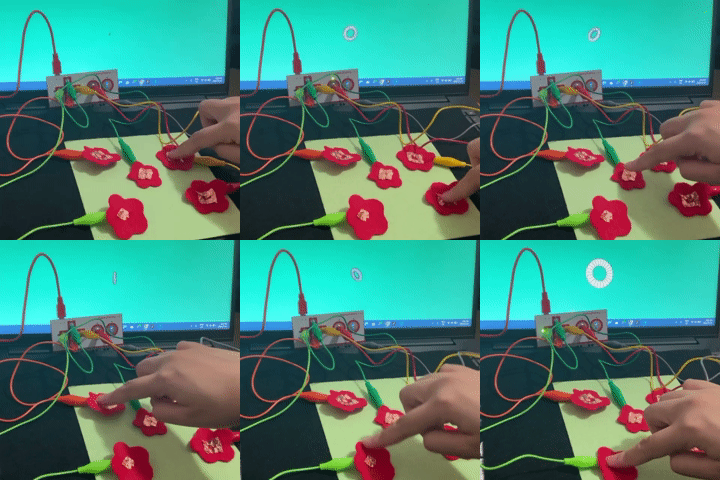
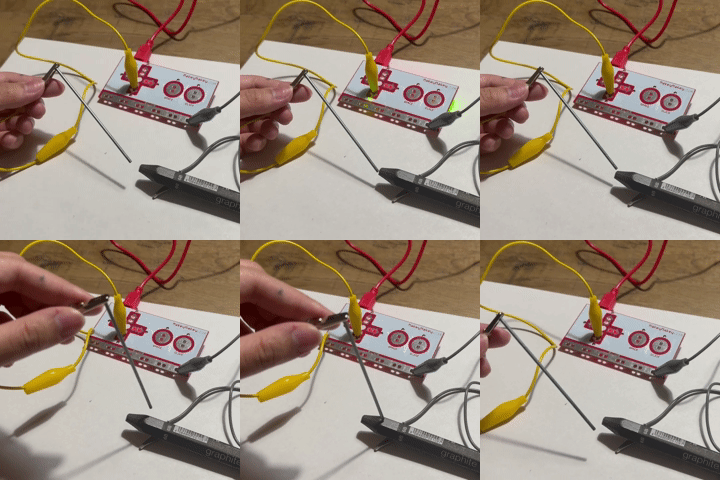
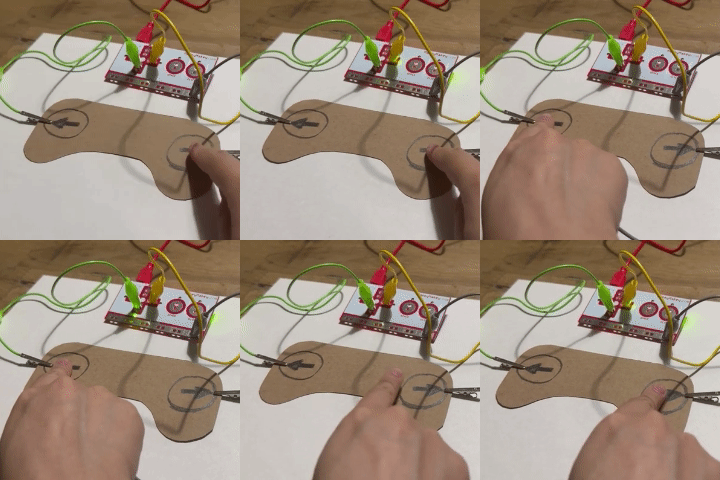
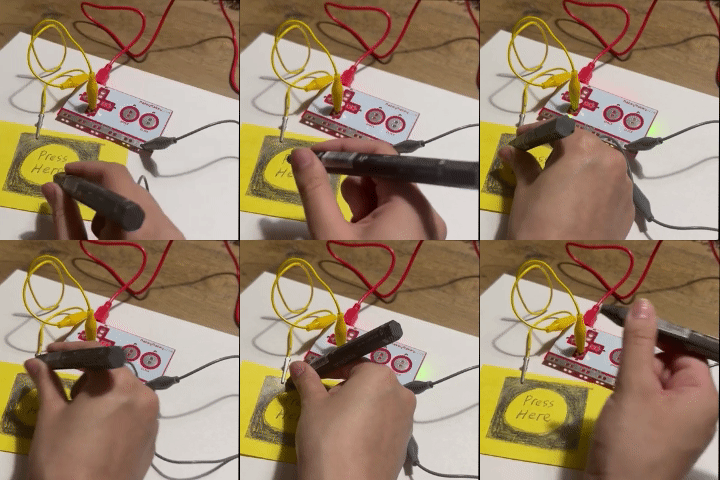
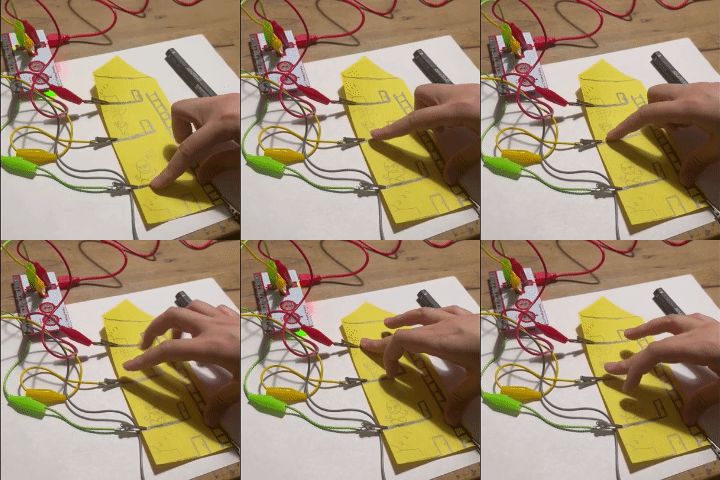
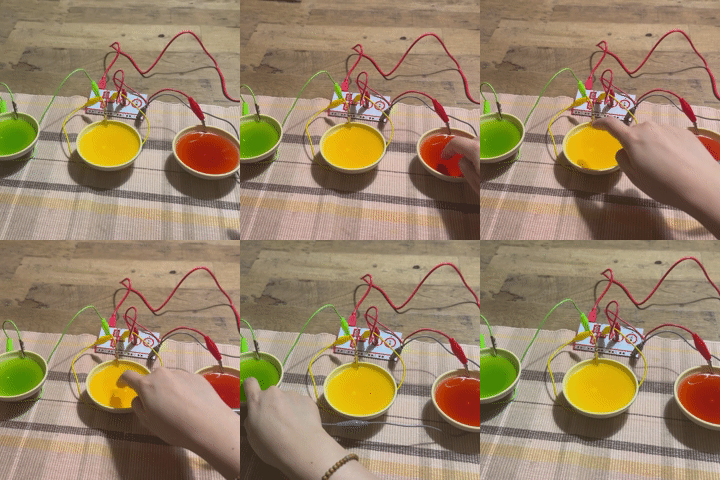
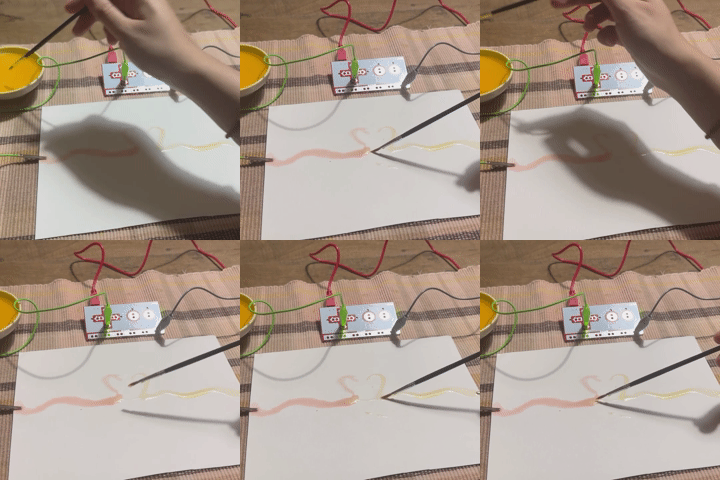
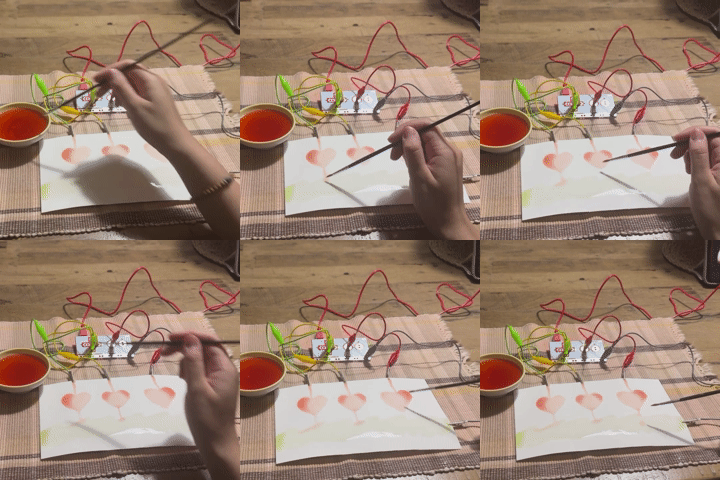
I began the exploration using conductive paint provided to us in class. The first symbol I decided to paint was from an anime, Gachiakuta. The symbol is very eye catching and has separate areas that make it easy to touch. It was hard using the paint at first because the paint was thick, so creating hard edges needed slower strokes. After completing the first graphic using conductive paint, I continued to create two more paintings to test with the Makey Makey. It gradually became easier to work with the conductive paint, it just needed slower strokes. I used sketch 6 from the code provided to us in class to test my first conductive painting. I held onto the ground wire before tapping the painting to trigger the sensor. I continued to test the conductive paint with the Makey Makey. Instead of just one sensor, there's two. On the left is a fish painting, while the right ride has a symbol from an anime series, Gachiakuta. Each painting was wired to different sensor, so it triggered different sounds. The last conductive painting I tested was a simple illustration of two fictional characters. Since I connected the character on the paper, I decided to cut it and create a switch. When I press down on the space between the characters, it triggers the left arrow sensor. To continue experimentation, I looked at everyday items in my room to see how I can incorperate the Makey Makey into them. I used my music box to create a circuit that breaks when the box is opened and connects when it's closed. I grabbed a small plush and added copper tape to different parts to trigger different sensor sounds on the Makey Makey. The parts I taped were the top of its head, it's two hands, and the name tag on its uniform. I thought it would be interesting to incorperate a connection with two plushies. Similar to the previous plushie interaction, the circuit would complete itself if the plushies hands are pressed together. I decided to incorperate all sensors (excluding the 'click' sensor) into the interaction. I used copper tape and wooden popsicle sticks to map out areas where the two sticks would interact. I was going for a wand motion, so when you pressed the tip of one stick to the copper tape areas, it would trigger different sounds connected to the respective sensor. I used felt and conductive fabric to create an open button system. By holding the ground wire, I created open fabric buttons to trigger sounds when touched. I used copper tape to map out a maze circuit. I thought it would be interesting to have open circuits placed on the journey of a coin, so when it passes the area it creates a sound to represent a milestone. I grabbed some pokemon cards and aluminum foil to create an interaction when you place the card down on the conductive surface (connected to teh ground). I placed aluminum foil behind the cards so then when the two surfaces touch, it will trigger a sound. While brainstorming objects to use, I remembered that humans are conductive. Considering I've been using myself as the ground for majority of the experimentation, it would be a cool circuit if its built with two or more people. I asked my sister to act as the other half of the circuit so when we fist bump, it would create a connection. I grabbed a wooden mannequin from my room to create a connection, using the base as the ground and the feet for other connections. Initially I wanted to have each limb interactable, but I had a hard time creating a ground space that each limb could reach. I continued working with aluminium foil, felt, and copper tape to create a piano visual. When I press down on the black keys, it creates a sound when it touches the aluminium acting as the ground. I thought it would be fun to work with other tools used to work with fabric. I used my needle pillow and pins to create a simple interaction that triggers when you poke the needle into the conductive fabric draped over the pillow. Since I've worked with fabric a lot this semester, I'm familiar working with felt and other fabrication materials. Although I've worked a lot with fabric, I never considered using the tools itself for the interaction. Similar to the last experimentation, I continued using fabrication tools such as a needle and thread to create a connection. I used a conductive thread to connect the needles, which were both connected to the ground and left arrow, when it's threaded through both needles. Besides fabrication tools, I created a simple interactive garden design. I connected myself to the ground, so when I press the center of each flower, it would trigger the sound from the p5 sketch. I began working with graphite by testing the conductivity between a 6B led and 4B led. Both completed the circuit well with little to no delays. I tested the conductivity of graphite because if there's not enough graphite, it wont create a proper circuit connection. Using a 6B graphite stick, I drew simple buttons onto a game controller shape I cut out. As I'm connected to the ground, the sound triggers when I press the button. I continued working with graphite by utilizing the graphite stick itself as the grounding wand, so when it touches the graphite space on the paper, it triggers the sound. I continued working with graphite with a simple graphite illustration. I created an apartment complex with a ladder on the right side. I connected the ground wire to the ladder, so when I use my hands to complete the connection, it triggers a different sound for each floor. Rather than objects, I used water to create an interactive circuit. I filled three bowls with water and coloured them to easily differentiate them. Since water is conductive, it worked the same was as a reular felt button or the conductive paint when it's interacted with. I continued working with water by incorperating a painting aspect into it. I created two water lines, so when it connects, the circuit is complete and creates a sound. I continued using water as a medium for the circuit by incorperating more than one trigger point. I created a simple heart illustration that creates three different sounds when I use the paintbrush to connect it to the ground.

Project 3


Final Project 3 Design

Star gazing is the title and central theme to my final project
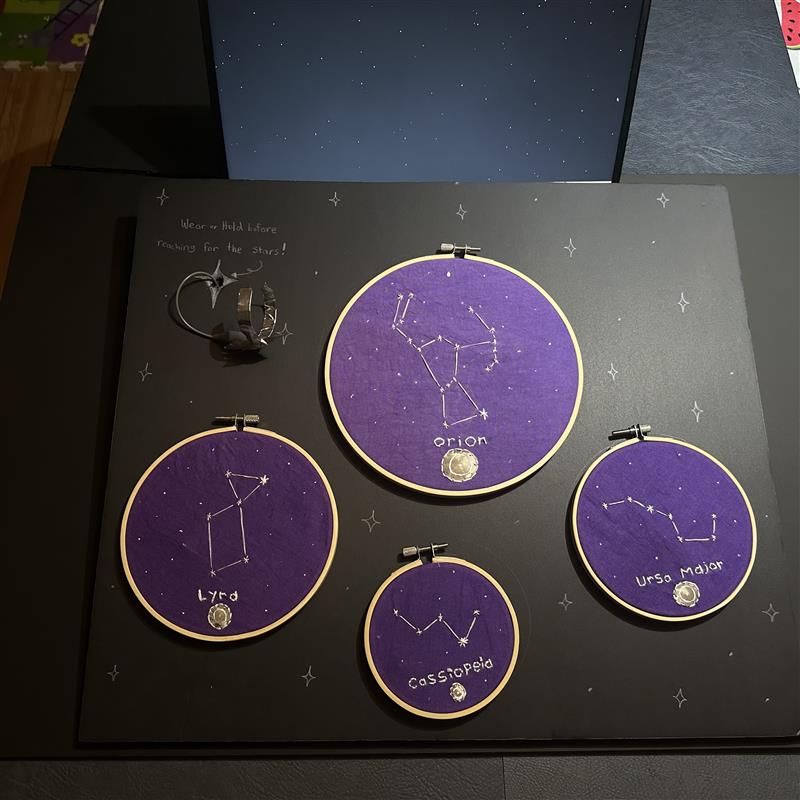
My starry night final aims to translate a traditional medium such as embroidery with a digital interface to create an interactive experience. Each constellation was chosen based on how prominent they are in within each season in the Northern Hemisphere. <a href='https://editor.p5js.org/arhcode/full/OLGQtI_xV' target='_blank'><p>Link to my P5.Sketch</p></a>"
×

Powered by w3.css